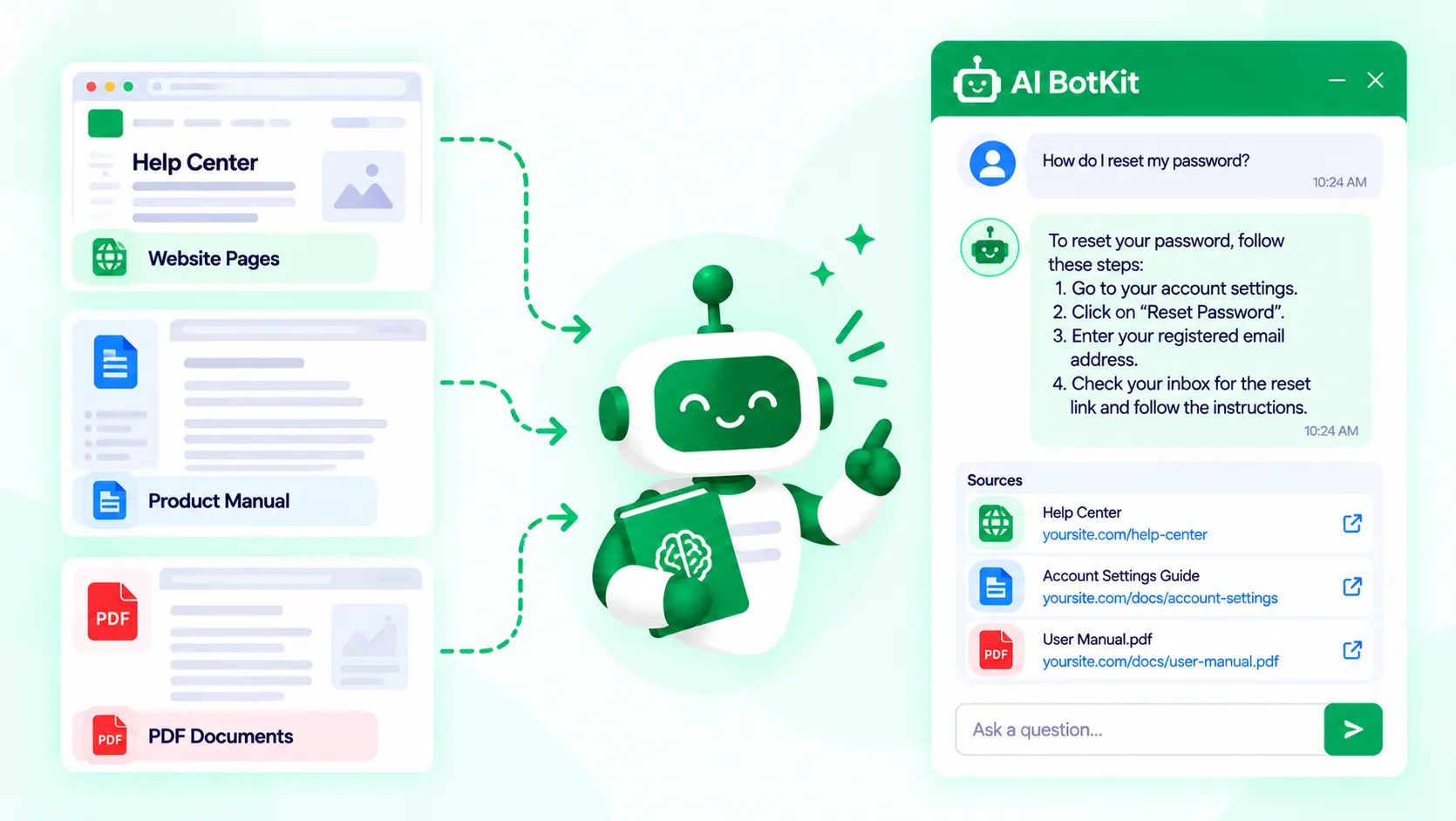
To train chatbot on docs, point a chatbot at your help pages, manuals and PDFs so it answers from them instead of general knowledge. No model is retrained: the bot searches your documents for each question. A chatbot trained on documentation is only as good as those documents, so what you include and how you test matters more than the tool.
Picture a visitor asking how long they have to return an order. Your help page says 14 days. An old PDF in the same folder says 30. The bot picks one and sounds equally sure of both.
At AI BotKit, we see this more than any other problem, and it rarely comes from the AI. It comes from the documents the bot was given.
Put simply, you train chatbot on docs by handing it your documentation as its only source of facts. For every question, it finds the relevant passage and answers from that. This guide covers what to include, how to set it up, and how to keep it right.
What does it mean to train a chatbot on docs?
Training a chatbot on docs is retrieval, not retraining. The model underneath stays exactly as it was, and your documents become a library it checks before it answers.
Retrieval, not retraining
The word “training” confuses people. In an older WordPress.org support thread, a newcomer asked where to train a chatbot on their site’s content. Support replied that true training means fine-tuning, which needs thousands of examples, and that embeddings usually do the job.
A generic chat widget skips this step entirely and answers from general knowledge. We explain that difference in AI BotKit vs ChatGPT widgets, and the mechanics in how to train a chatbot on website content.
You are not teaching the bot anything. You are choosing what it is allowed to read.
What counts as docs
For a small business, docs usually means whatever you copy from when you answer a customer:
- Help-center or knowledge base articles
- Product manuals and setup guides
- Policies such as returns, shipping and terms
- Price sheets, slide decks and other PDFs
- Short notes you paste into email replies
Is your documentation ready to train on?
Not every site needs a bot yet. If you get a handful of questions a month and already have a clear FAQ page, that page may be all you need.
If you are adding your first chatbot, this check shows what to fix first. If you already run one and the answers are off, it points to the likely cause. Count how many of the six questions below you can answer yes to.
The docs readiness check
- Is the answer to your five most repeated questions written down somewhere today?
- Does each topic have one current version, with no old copies still around?
- Could a stranger understand each doc without your internal shorthand?
- Is the content real text, not only screenshots or scanned pages?
- Would you be comfortable with any visitor reading everything you plan to upload?
- Can you spend 30 minutes a week reading what visitors asked the bot?
What your score means:
- 0 to 2 yes: fix the docs first. A clear FAQ page is a better use of your time than a bot right now.
- 3 to 4 yes: train on a small set of your strongest docs and expand later.
- 5 to 6 yes: you have a strong case, so go to the step-by-step section.
If the answer is not written down, the bot has nothing to answer from.
If you want to count your repeat questions first, our guide to deflecting support tickets with AI shows how.
If you have no written docs yet
A bot cannot answer from nothing. Write down the answers to your five most repeated questions, in the words customers use. That short document is a better first training set than a long one you never finish.
If your docs are scattered across tools
Pick one source of truth per topic before you upload. Copies in a shared drive, an old wiki and an email template give the bot several chances to retrieve the wrong one.
Which docs should the chatbot read, and which should it never see?
Decide what goes in before you upload anything, because the bot treats every document as equally true.
Public help docs versus internal documents
A chatbot on your website is public, so anything you train it on can end up in an answer. Keep out contracts, staff handbooks, client lists and anything with personal details. An internal assistant is a different job with different access rules.
Check how your tool handles data before you start. Your content and visitors’ questions are processed by the chatbot service to produce answers, so read where they are stored and for how long. Our privacy policy covers ours, and no tool can hand you compliance, so check against your own obligations.
Visitors are already wary. A Gartner survey of 5,728 customers found 64% would prefer that companies did not use AI in customer service. One confident wrong answer proves them right.
Train only on what you would be comfortable seeing printed on your homepage.
When two docs disagree
Contradictions are a common cause of confident wrong answers. Air Canada learned this in public when a tribunal held it liable for wrong bereavement-fare advice from its chatbot. The airline argued the correct policy sat elsewhere on its website, and the tribunal rejected that defence.
Small tests show the same pattern. A founder who builds chatbots for company docs described on Hacker News how a pre-launch check turned up a wrong answer. The team suspected the model first, then found outdated information buried in an obscure corner of the docs.
Before you blame the bot, search your docs for the same question and count how many different answers come back.
If your docs give two answers, your chatbot will too.
Scans, tables and long manuals
Most tools turn a file into plain text before the bot can search it, so the file’s format affects the answers.
- Scanned PDFs are photographs of pages with no text to read. Try selecting a sentence: if nothing highlights, there is no text.
- Tables can come out scrambled, so put key prices and specs on a web page as well.
- Long manuals retrieve better when every section has a clear heading.
How to train chatbot on docs, step by step
This is the order we would follow for a first version, and you can stop after any step. The steps are the same on WordPress, Shopify, Squarespace, Wix or custom HTML. Only the connection method changes.
If you are still choosing a tool, our guide to how WordPress chatbot plugins work covers what separates them.
Step 1: Match each type of doc to a source
Chatbot tools take documents in different ways, so decide how each type will go in.
| Doc type | Best way in | Watch out for |
|---|---|---|
| Public help-center pages | Add the page URLs or scan the site | Old articles still live on the site |
| Posts and pages on a WordPress site | Connect your WordPress content | Drafts and thin archive pages |
| Manuals, price sheets, slide decks | Upload the file | Scans and tables |
| A policy that lives in one email | Paste it as short text | Keeping the pasted copy current |
| Your ten most repeated questions | Write them as question-and-answer pairs | Updating them when answers change |
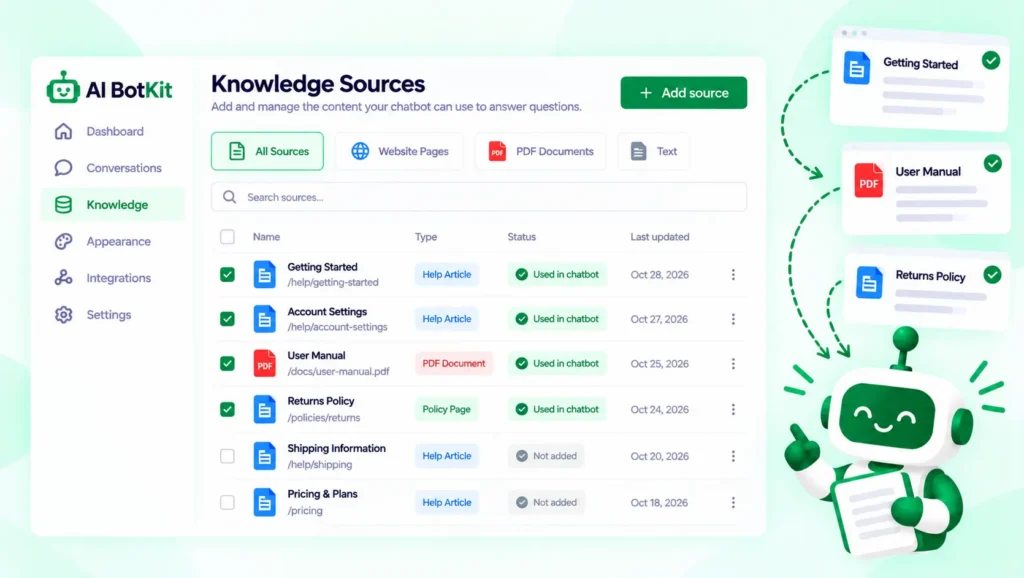
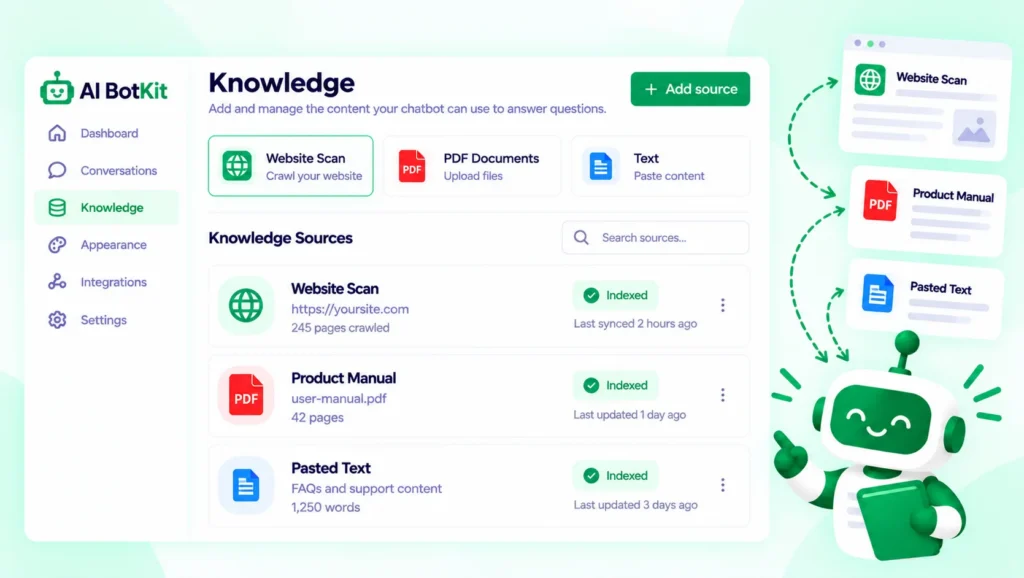
We built AI BotKit to accept website scans, URLs, files, pasted text, Q&A pairs and WordPress content, so one bot can mix them. Which of these your plan includes is listed on our pricing page.
Step 2: Add the sources and leave the noise out
Add your best documents first, and leave out anything outdated at this stage rather than later. Adding everything and pruning afterwards means you test against noise you put there yourself.
If you are on WordPress, you can create your chatbot in AI BotKit from your dashboard. On other platforms you add an embed snippet instead. Setup details are in our documentation.
One site owner on our free plan wrote in a WordPress.org review that our team helped train the bot on their own materials. If you would rather not do it alone, that kind of help exists.
Ten strong documents beat two hundred loose ones.
Step 3: Write exact answers for your highest-stakes questions
Some answers should not be left to retrieval. Returns windows, prices and safety information are worth writing as exact question-and-answer pairs, so the wording sits in the knowledge base rather than inside a long document.
Keep those pairs consistent with your docs. Otherwise you have created the contradiction yourself.
Step 4: Set the fallback message and the handoff
Decide what the bot says when it does not know before a visitor finds out. In AI BotKit, we let you set both the fallback message and the bot’s instructions, so you can tell it to point people to you instead of guessing.
Add a way to reach a person too. In a Gartner survey of 3,566 customers in early 2026, 87% said a human option is essential when a company uses generative AI. Human handover is available on some of our plans, so check the pricing page for yours.
Telling a visitor you will connect them to a person beats a confident guess.
Step 5: Test with real questions
Test with the questions customers actually ask, worded the way they word them. Take twenty from your inbox, DMs and contact form.
Then add five questions your docs do not answer, and check that the bot says so. If it answers one anyway, the model is filling a gap, which is the next section’s problem.
Step 6: Go live, then read the conversations
Launch on one page first, then read the conversation history every week for a month. On WordPress, publish the chatbot from the plugin. Elsewhere, paste the embed snippet into your site template.
Why is my docs chatbot giving wrong answers?
Wrong answers usually trace to one of four causes, and each has a different fix. Adding more content fixes only one of them.
| What you see | Likely cause | What to fix |
|---|---|---|
| Confident answer, wrong facts | Two docs disagree, or the answer is missing and the model filled the gap | Remove the old version or add the missing doc |
| “I don’t know,” but the answer exists | Your wording does not match how customers ask | Rewrite the heading in the customer’s words |
| Answers about things you never wrote | The model is falling back on general knowledge | Tighten the bot instructions and test out-of-scope questions |
| Answers about the wrong product or version | Similar docs for several products are mixed together | Label the docs clearly, or use a separate bot per product |
A plugin author put the third row bluntly in an AI Engine support thread. A site owner’s bot kept confusing his articles with other people’s, and the author said the model mixes general knowledge with your content, which is “a common issue”. His advice was stricter instructions.
Grounding reduces made-up answers, but it does not remove them.
Whether a bot gets a question right depends mostly on whether your docs hold a clear answer to it. No tool can promise zero wrong answers, so plan for a human to see the rest.
How do you keep the chatbot accurate as your docs change?
A bot is accurate on launch day and then drifts as your docs change. Match your review rhythm to how often your prices and policies move: monthly suits most small sites, and sooner for anything seasonal.
Whenever a price, policy or opening time changes, update the source and re-check the bot on that one question. If your tool syncs automatically, confirm it by editing a doc and asking about the change. If it does not, set a calendar reminder.
Read what visitors actually asked
Your conversation history is free research. Each question the bot could not answer points to a doc you have not written yet.
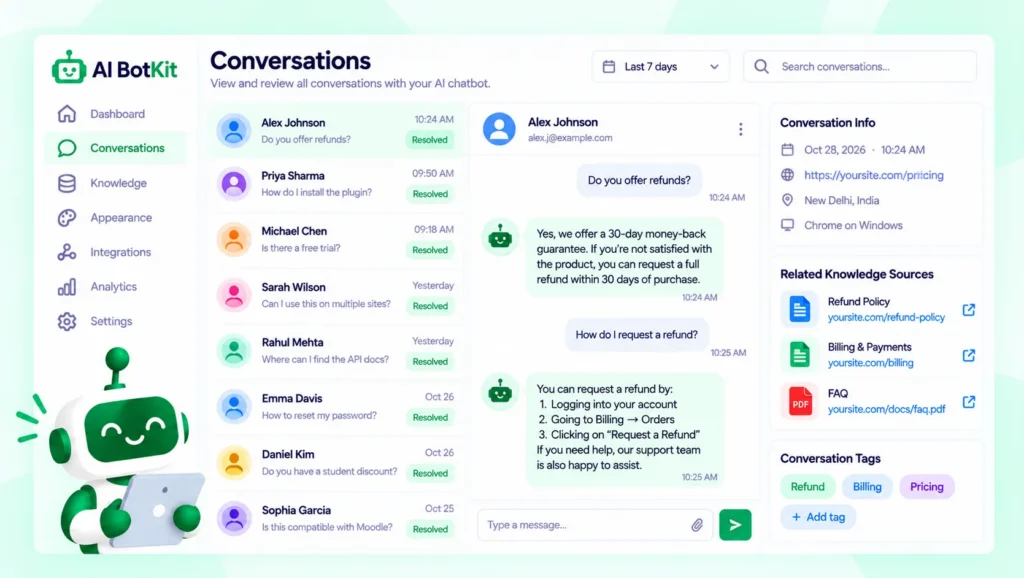
We have spent over a decade building WordPress products at WisdmLabs, and the pattern is the same here: a bot stays useful when someone reads what visitors asked.
Every unanswered question is a document you have not written yet.
Which setup fits your situation?
The right route depends on what you have today. If your main goal is fewer support emails, our guide to AI customer support for small business owners covers the day-to-day setup.
| Your situation | Sensible starting point | Watch out for |
|---|---|---|
| Solo, no written docs yet | Write answers to your top five questions, then train on those | Uploading a huge archive before you know what people ask |
| WordPress site with help articles as posts | Connect your WordPress content to a chatbot plugin | Drafts and old posts getting pulled in |
| Help center on another platform | Add the help-center URLs and use an embed snippet | Outdated articles that are still live |
| Agency building for clients | One bot per client site, trained only on that client’s docs | Mixing client content; agree the fallback and handoff before launch |
| Developer who wants full control | A plugin that lets you bring your own model, such as AI Engine | More to maintain. Its author said last year that its knowledge feature needs the Pro version and a vector database, so check current docs |
Start with the smallest set of docs that answers your most repeated questions.
FAQ
Do I need to fine-tune a model to train chatbot on docs?
No. For documentation, retrieval is the usual approach: the bot searches your docs and answers from them. Fine-tuning changes the model itself, needs a large set of examples, and goes stale as soon as your docs change.
Can I train a chatbot on PDFs and a help center together?
Yes. In AI BotKit, we let one bot read files and website pages together. Remove outdated copies first so the bot is not choosing between versions.
Why does my chatbot answer questions that are not in my docs?
The underlying model has general knowledge and will sometimes fall back on it. Tighten the bot’s instructions, set a fallback message, and test with questions you know your docs do not cover. Grounding reduces this but cannot eliminate it.
Is it safe to train a chatbot on internal documents?
Only if the chatbot is private. A public website chatbot can repeat what it has read, so keep contracts, staff material and personal data out. Check the tool’s privacy policy for how content and conversations are stored.
How often should I update the chatbot?
Whenever a price, policy or opening time changes, and at least monthly for most small sites. If your tool syncs automatically, confirm that by editing a doc and asking about the change.
If you have a folder of help pages and PDFs and are wondering whether a bot could answer from them, the quickest test is your five most repeated questions. We built AI BotKit with a free plan so you can build a chatbot trained on your own docs and see how it answers your own questions before you decide anything.