
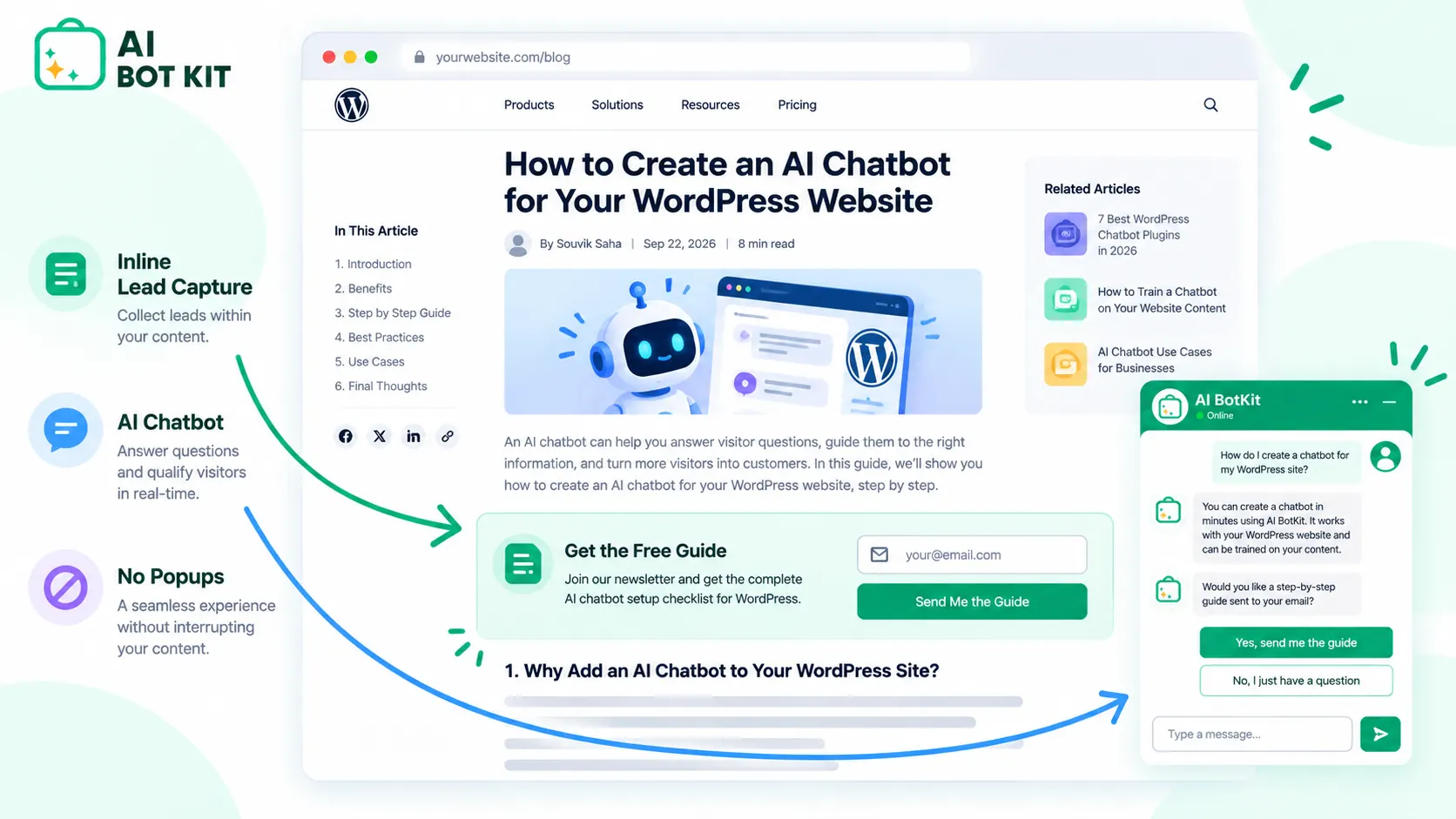
If you want to capture leads, WordPress gives you better options than a popup. Put the ask where visitors are already paying attention: a content upgrade inside a blog post, a short form beside your service details, or chat that answers a question before it asks for an email.
Lead capture without popups works best when each page gets the method that fits why people are on it.
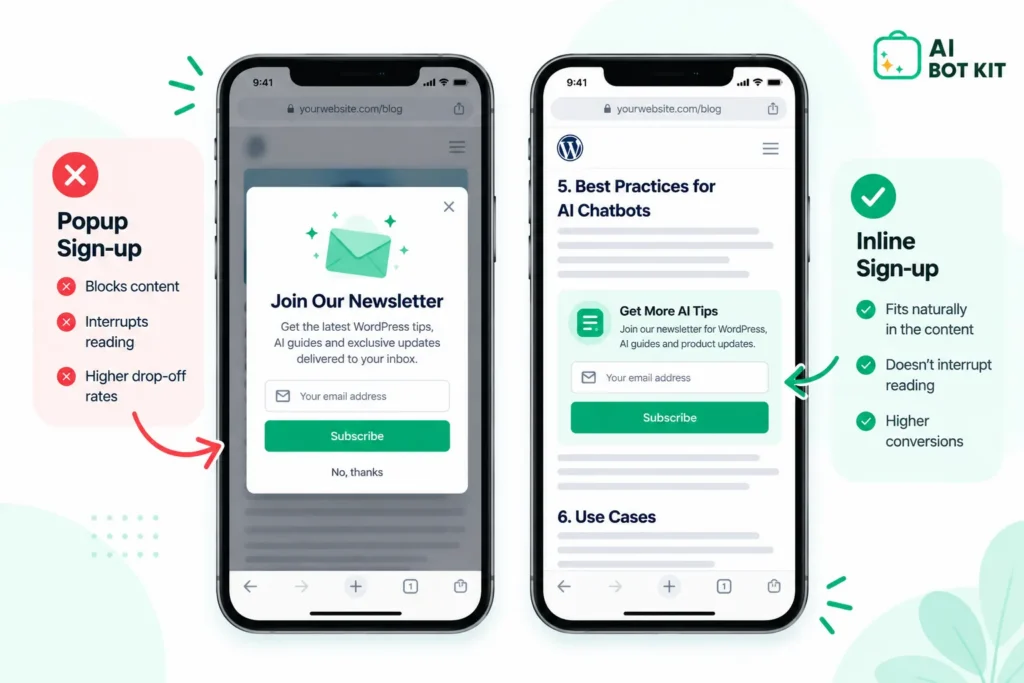
Someone lands on your pricing page from Google, reads two lines, and a box slides over the page asking for their email. They haven’t learned anything yet, so they close it. Or they close the tab.
At AI BotKit, we see this pattern on small business sites all the time. The visitor wanted an answer, the site wanted an email, and neither got what it came for. This guide covers what to use instead, page by page, and where a popup still earns its place.
Lead capture means collecting a visitor’s contact details, with their permission, so you can follow up. The method you choose decides how many people say yes, and how much you know about them when they do.
Why are popups costing you more than the leads they bring in?
Popups still convert, but they cost you in trust, mobile experience and lead quality.
Popups do convert, and that’s worth admitting
Articles about lead capture without popups often pretend popups don’t work. They do. According to Wisepops’ 2026 report, based on a billion displays, the average popup converts 4.82% of the people who see it, and Sumo’s earlier study of 1.75 billion popups put the average at 3.09% (BDOW popup statistics).
Treat those numbers carefully. They come from popup vendors, and one practitioner who ran a newsletter of over 600,000 contacts points out that vendors rarely say whether they divide by displays, sessions or unique visitors, and puts a realistic signup popup rate at 3–4%.
What popups cost you on mobile and in search
The first cost is the visitor’s patience. In a Nielsen Norman Group survey of 452 US adults, popups ranked among the most hated advertising techniques, as they had in a similar 2004 study (NN/g, Overlay Overload). A separate Wisepops survey published on G2 found 82.2% of respondents hated email popups.
The frustration shows up in real conversations too. One reader in a Hacker News thread about sign-up nags said a modal that appears mid-article makes them “close the tab after the second paragraph once the modal appears.”
The second cost is search visibility. Google’s Search Central guidance says intrusive dialogs and interstitials make it hard for search engines to understand your content, which may lead to poor search performance. It recommends small banners that let users and search engines reach the content as soon as they land (Google Search Central).
The lead you get is only an email address
A popup tells you who signed up, not why. You get an email, maybe a first name, and no idea whether they were comparing prices, stuck on a setup question, or just being polite. A lead that arrives with its question attached is far easier to follow up well.
Which lead capture method fits which page on your site?
Match the method to the reason people are on the page, and most popup problems go away.
A blog reader wants to finish the article. A visitor on your services page is weighing a decision. Someone on your contact page has already decided. These popup alternatives on WordPress each suit one of those moments.
| Page type | Why visitors are there | Best method without popups | What you capture | Setup effort |
|---|---|---|---|---|
| Blog post | Learning | Content upgrade or inline form | Email plus the topic they cared about | Low |
| Service or product page | Evaluating | Short form beside the details, or chat | Email plus their question or need | Low to medium |
| Pricing or contact page | Ready to act | Booking link or 2–3 field form | Contact details and timing | Low |
| Whole site | Mixed | Slim dismissible banner or chat widget | Email, plus their question via chat | Low |
If you’re running a site-wide popup today, you don’t have to remove it overnight. Start by turning it off on mobile and on your highest-intent pages, then add the methods below and compare results.
If you have no lead capture yet, start with the one or two pages that get the most visits from people who could buy. On a smaller site, a form on your services page will usually do more than a sign-up box on every post.
How do you capture leads from blog posts without interrupting the read?
On a blog, ask while the reader is still reading, with an offer that extends what they came for.
Offer a content upgrade matched to the post
A content upgrade is a bonus tied to one article, such as a checklist, template or worked example. WitsCode, which runs conversion work across more than 250 sites, argues the highest-converting place to capture blog leads is a post-specific upgrade delivered inline, partway through the article, rather than a sidebar, popup or footer box (WitsCode).
You don’t need one for every post. Pick the five posts that bring in the most readers and build an upgrade for each. A post about pricing a service can offer a pricing worksheet. A post about choosing a tool can offer a comparison sheet.
Place an inline form where attention peaks
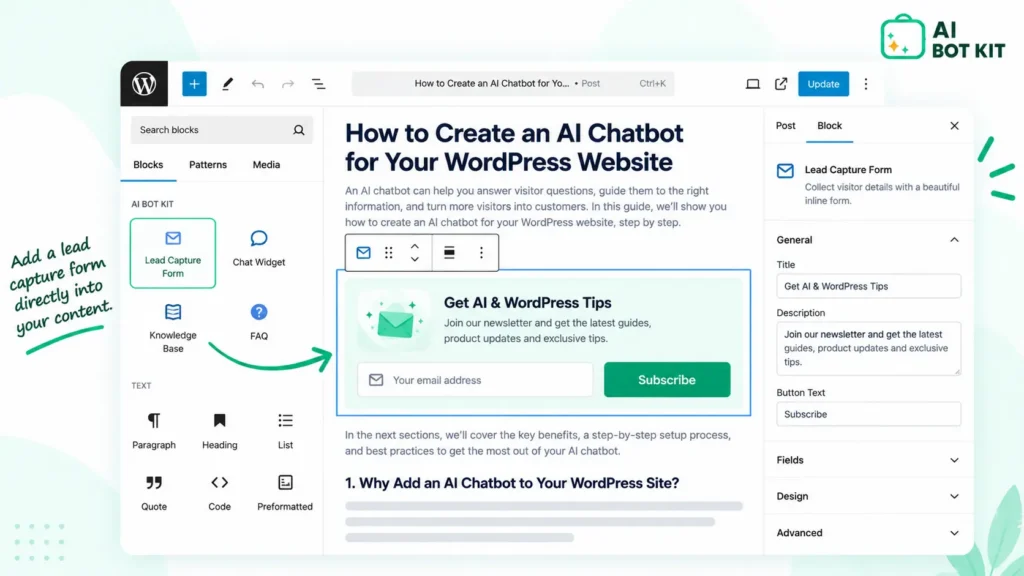
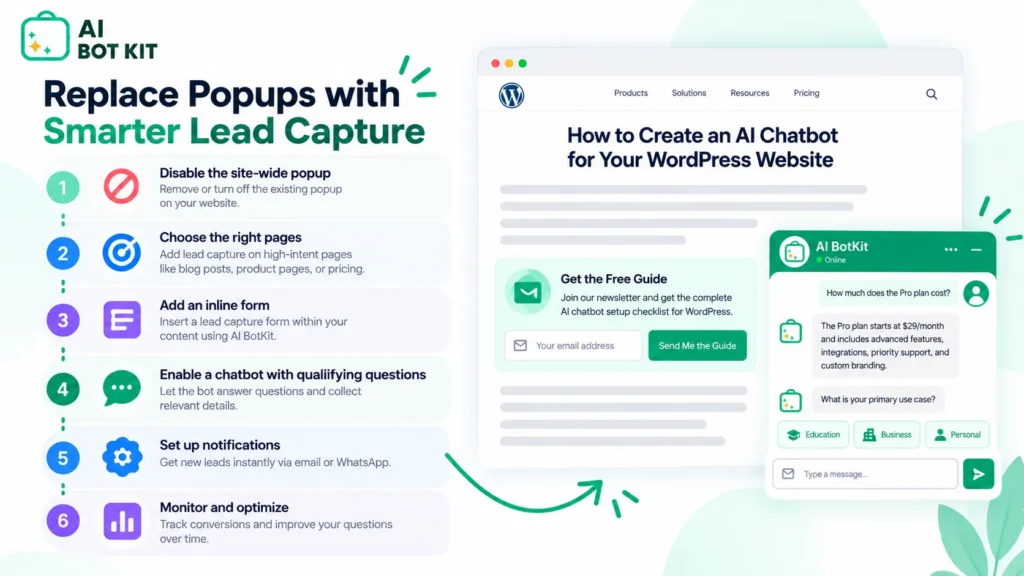
An inline form sits between paragraphs, so readers can engage without losing their place. Jetpack Forms adds a Form block you can insert into any page or post from the block editor, so you can do this without a popup plugin.
Keep the fields to an email address, plus a first name if you’ll actually use it. Every extra field needs a reason the visitor would accept.
End with a next step that continues the topic
The end of a post is where readers decide what to do next. A closing box that offers the next piece of the topic, such as the template or a related guide, reads as help rather than a pitch.
That difference matters to readers. As one commenter put it in a Substack thread about author websites, popups “seemed like demands, not requests.” An offer at the end of an article someone chose to finish is the opposite of that.
How do you capture leads on service and product pages?
Visitors on these pages are evaluating, so put the ask right next to the details they’re weighing.
Put a short form where the decision happens
Place a two- or three-field form beside your service description or product details, not on a separate contact page. Ask for what you need to reply well: an email and one line on what they need. That one line tells you more than a phone number would.
Offer a booking link instead of a contact-page wall
If you sell services, a calendar link often suits visitors who are ready to talk. A physio clinic or a small agency can let people pick a slot for a short call, which captures their details and their timing in one step.
Use a slim, dismissible banner for site-wide reach
If you need something on every page, use a small banner that doesn’t cover your content, in line with Google’s guidance. Make sure it closes easily on a phone and stays closed.
Both of those details go wrong more often than you’d think. In one Shopify Community thread, a store owner’s newsletter popup couldn’t be closed on mobile because the close button wasn’t visible. In another, a popup kept reappearing on every page even after visitors asked not to see it again.
How do you capture leads through chat that answers first?
Chat captures the best leads when it helps first and asks second, because the visitor’s question arrives with their details.
What “trained on your own content” means
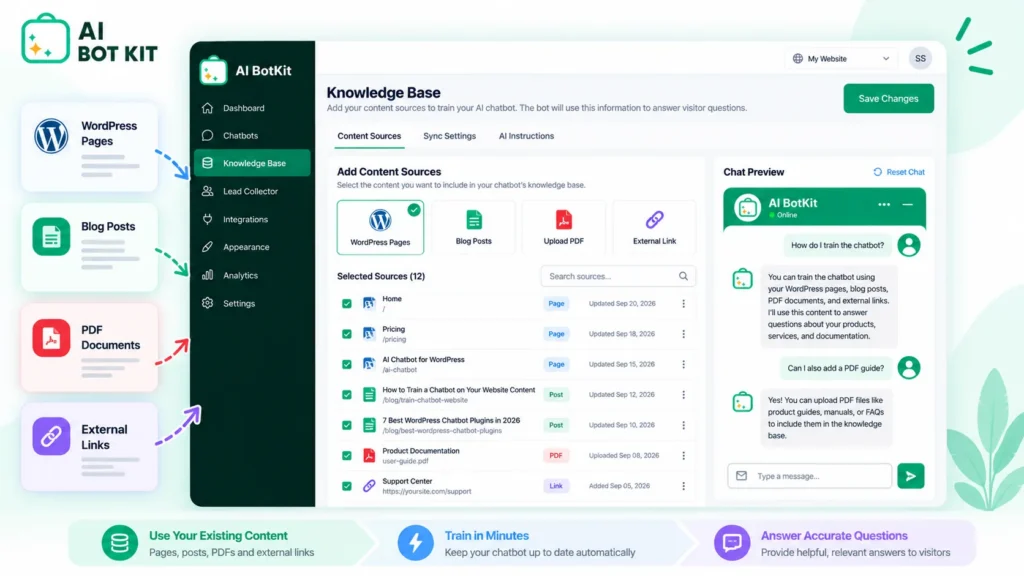
An AI chatbot trained on your own content answers visitors using the pages, posts and documents you give it, rather than general internet knowledge. When we built AI BotKit, we set it up to learn from your WordPress pages, posts, uploaded PDFs and external links, and to answer from that material.
The honest catch is that the bot is only as good as that content. If your service pages are thin or your pricing page is out of date, the answers will be too. Before adding chat, check that the pages it will learn from actually answer the questions visitors ask.
If you’re still choosing a tool, our guide to the best chatbot for WordPress compares the options.
When the chat should ask for contact details
Timing is where most chat lead capture goes wrong. A chatbot that demands an email before it helps is just a popup inside a chat window. Vendor guidance is consistent here: answer a question or give a useful recommendation first, then ask, and capture the context of the request as well as the email.
The same mistake turns up in code. A pull request on the open-source ChatterMate project fixed a flow where visitors typed their email into a gate, and the bot asked for it again a minute later.
A better pattern is simple. Ask once, after the bot has answered something useful. Give a reason, such as “Want me to send these details to your inbox?” If the visitor says no, keep helping. You can see a chat flow in action on our demo page.
What happens when the bot doesn’t know the answer
Some questions shouldn’t stay with a bot, such as a complaint, a custom quote, or a problem unique to one customer. We built AI BotKit to escalate to humans when needed, so the visitor isn’t stuck in a loop. A clear route to a person stops a hard question from turning into a lost lead.
Set up chat lead capture in WordPress
We’ve spent over a decade building WordPress products at WisdmLabs, so we kept setup inside the plugin screen you already know. Here’s how to add our WordPress chatbot plugin:
- Install the plugin. Search for it under Plugins → Add New in your dashboard, or install it from the WordPress.org listing, then activate it.
- Choose what it learns from. Select the pages, posts, PDFs or external links that answer your visitors’ most common questions. Start with your service, pricing and FAQ pages.
- Test, then go live. Ask it the ten questions you hear most often and check each answer against your pages before switching it on.
A note on plans: the free plan includes all current chatbot features, while lead capture, advanced analytics and integrations are on the Pro plan. That means you can check answer quality on your own content before paying for anything. Compare plans on our pricing page.
What should you check before collecting visitor details?
Collect only what you’ll use, say why you’re asking, and know where the data goes.
Any lead capture method, form or chat, means handling personal details. You don’t need a law degree, but a few basics should be in place before you switch anything on.
- Ask for the minimum. If you won’t call, don’t ask for a phone number.
- Say why you’re asking. One line next to the form or in the chat is enough.
- Update your privacy policy. Make sure it covers form submissions and chat conversations, not only cookies.
- Know where the data is stored. Check whether your form or chat tool sends data to third-party servers.
On that last point, our WordPress.org listing states that the plugin connects only to our servers for training and response generation, shares no user data with third parties, and does not collect personal data without explicit consent. The rules that apply to you depend on where you and your visitors are, so check those too.
Checklist: Replace your popup without losing leads
Work through this in order. You can do the first four in an afternoon.
☐ List your top 10 pages by traffic and note why visitors land on each one
☐ Turn off full-screen popups on mobile first
☐ Add a content upgrade to your highest-traffic blog post
☐ Put a short form beside the details on your main service or product page
☐ Swap any site-wide popup for a slim, dismissible banner if you still need one
☐ If you add chat, check its training content answers your 10 most common questions
☐ Set chat to ask for details only after it has helped, and only once
☐ Compare leads per page for four weeks, and review what each lead actually asked
FAQ
Do popups hurt SEO on WordPress?
Popups that cover your content can, especially on mobile. Google’s Search Central guidance says intrusive interstitials and dialogs may lead to poor search performance, and recommends small banners instead. Interstitials that are legally required, such as age checks, are treated separately.
What’s the simplest way to capture leads on WordPress without popups?
Add a short inline form to your most-visited service or product page. Jetpack Forms adds a Form block to the block editor, so you can place one in minutes. Keep it to an email address and one question about what the visitor needs.
Is a chatbot better than a contact form for capturing leads?
It depends on the page. A form works well where visitors are ready to act, such as a contact or booking page. Chat suits pages where visitors still have questions, because it can answer them and capture the question with their details, as long as the content it learns from is accurate and current.
Should a chatbot ask for an email before answering?
Usually not. Asking before the bot has helped makes the chat feel like a gate, and many visitors leave. Ask once, after a useful answer, and keep helping if they decline.
What if my site doesn’t get much traffic yet?
Focus on the pages where buyers land rather than on site-wide capture. A form or chat on your main service page will reach more of the people who matter than a sign-up box on every post. As traffic grows, add content upgrades to the posts that bring in the most readers.
If visitors keep asking the same questions before they buy, those questions are where your leads are. Answer them on the page, ask for details once you’ve helped, and you’ll know exactly what to say when you follow up.
At AI BotKit, we built our Lead Generation Chatbot for exactly this. Start on the free plan, check the answers against your own content, and switch on lead capture when you’re happy with them.