
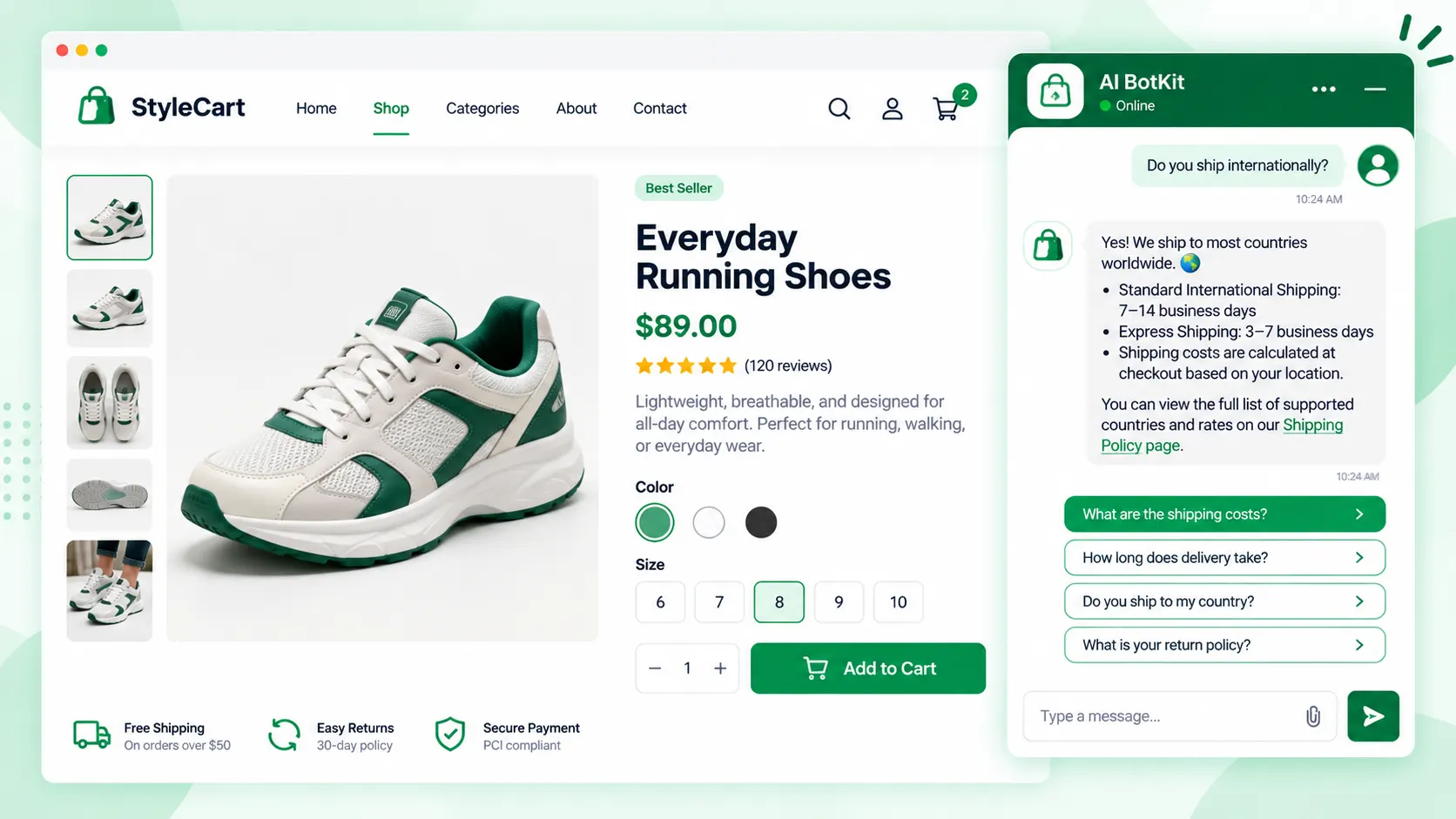
A WooCommerce chatbot is a chat widget on your store that answers shopper questions from your own product, shipping and returns pages, and passes anything it can’t answer to you. To set one up, gather your pages, train the bot on them, test its answers, and publish the widget. It is only as good as the pages behind it.
You answer the same five questions every week: where is my order, do you ship to my country, can I return this. At 40 emails a week, that adds up to real hours. We built AI BotKit so a store like yours can run a WooCommerce AI chatbot on its own pages, and this guide shows you how.
If you’re adding your first chatbot, start at step 1. If you already run one and the answers are off, jump to the section on keeping answers right when products change.
What can a WooCommerce chatbot actually do for your store?
A content-trained chatbot answers the questions your pages already answer. Shipping times, return windows, sizing notes, how two products differ: if the answer is written on your site, the bot can find it and say it in a chat window. If the answer isn’t on a page, the bot has nothing to give.
What it handles from your content
These are the questions a bot trained on your pages can usually answer:
- Shipping, delivery and return policies
- Product details written on your product pages
- Payment, warranty and contact questions
- “Which one should I pick?” questions, when your pages compare the options
What needs a deeper integration
Looking up one shopper’s order or building their cart is a different job. It needs a live connection to your WooCommerce store’s data, plus rules about who can see which order. When a forum member asked for an AI to build carts for WhatsApp customers, WooCommerce’s support reply said no single official extension does that.
Plugin builders say something similar. The author of AI Engine explained in a WordPress.org thread that he won’t expose WooCommerce endpoints blindly. Useful order tracking, he wrote, needs a proper wrapper and role-based permissions. A WooCommerce beverage shop described its order lookup and delivery scheduling as a large custom build.
This guide sticks to what you can set up today with no code: answers drawn from your own pages. For anything beyond that, check our documentation for the current WooCommerce options. Decide which job you need before you pick a tool.
| Shopper question | Answered from your pages? | Needs live store data? |
|---|---|---|
| How long does shipping take? | Yes | No |
| What is your return window? | Yes | No |
| Does this product come in other sizes? | Yes, if the page says so | No |
| Is it in stock right now? | Only as current as the page | Yes, for a live answer |
| Where is my order #1234? | No | Yes |
| Add this to my cart | No | Yes |
Is a WooCommerce chatbot worth adding to your store?
It depends on how often you answer the same questions. Baymard Institute puts average cart abandonment at 70.22%, based on 50 studies, and its research lists slow delivery as a reason about 20% of shoppers ended checkout.
A chatbot doesn’t undo abandonment. But a shopper with an unanswered shipping question is one you can still reach before they leave.
If you answer the same questions by hand every week
A chatbot earns its place when a few dozen of your weekly messages ask what’s already on your pages. Train it on those pages and you answer once, in writing, instead of every day. Repeat questions are the clearest sign you need one.
If you have a small catalog and few questions
If you get a handful of questions a month, a clear FAQ page and a visible returns policy may be enough. A chatbot is one more thing to test and maintain. Start with the page, and add the bot when the questions pile up.
If you’re still deciding
Compare a bot with a contact form before you commit. Our chatbot vs contact form breakdown covers what the conversion data does and doesn’t say. If you’re weighing tools, how WordPress chatbot plugins work explains how to choose.
How do you set up a WooCommerce chatbot in six steps?
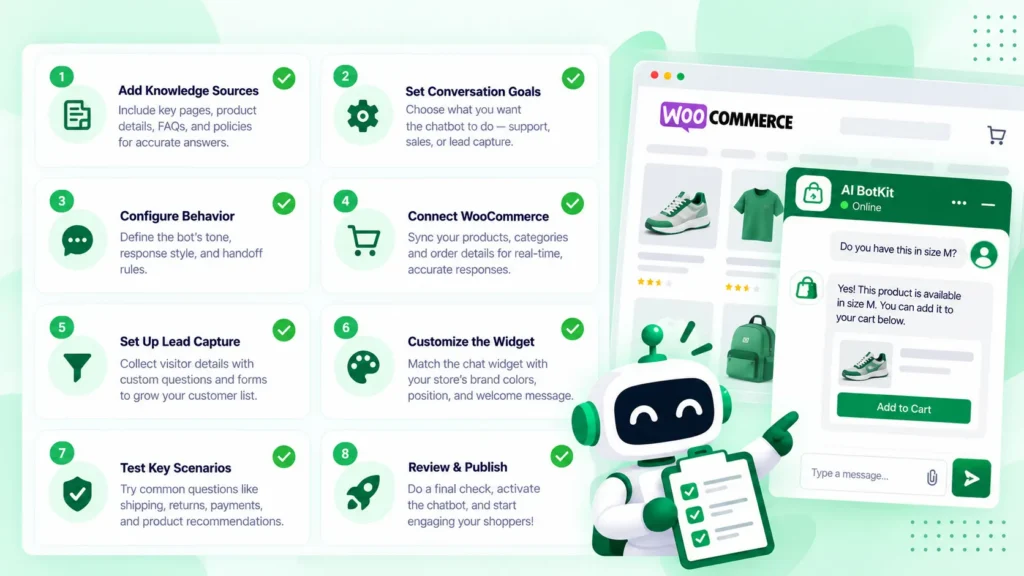
Here is how we set it up, and the order works for any content-trained bot. You can follow it whether you’re starting fresh or replacing a bot that gives weak answers.
Step 1: Get your pages ready
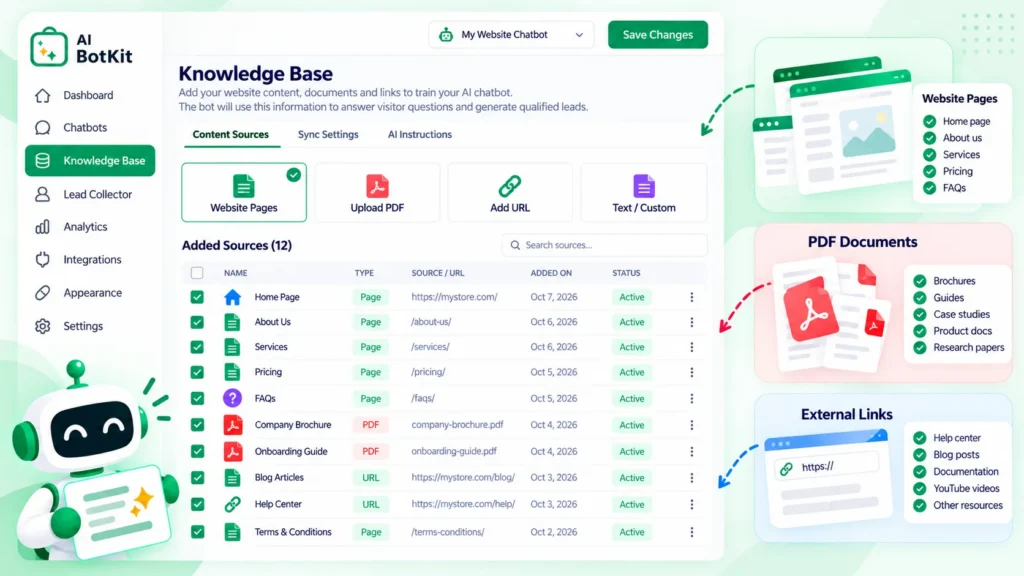
Open your shipping, returns, FAQ and top product pages and read them as a shopper would. If a question you get by email isn’t answered on any page, write the answer down now. No FAQ page yet? A short document works too, because you can upload a PDF.
The bot can only repeat what your pages say, so fix the pages first.
Step 2: Create the chatbot
Pick one of two routes. To work inside WordPress, go to Plugins, then Add New, search for AI BotKit, then install and activate it. The welcome page offers an onboarding wizard that creates your first chatbot.
Prefer a dashboard? Start a free account with our AI BotKit WordPress chatbot plugin page, then copy the embed snippet from the Deploy section. Paste it into a Custom HTML block on your site. The same snippet also works on non-WordPress sites.
Step 3: Train it on your pages, PDFs and product URLs
Add the pages from step 1 as training sources. In AI BotKit, we let you train on WordPress pages and posts, uploaded PDFs and external URLs, so product pages can go in as links. Our guide to training a chatbot on website content covers what to include.
Start with the pages that answer your top questions, then add more later. Leave out anything that contains customer details.
Step 4: Set tone, greeting and fallback message
Choose a tone preset (Professional, Friendly or Casual), write a short greeting, and set a fallback message for questions the bot can’t answer. Make the fallback useful, for example: “I’m not sure about that. Email us and we’ll reply as soon as we can.”
A good fallback sends the shopper to you instead of leaving them stuck.
Step 5: Test it with real questions
Take 10 to 15 real questions from your inbox and ask them in preview mode. Mark each answer right, wrong or “not on any page.” Fix wrong answers by editing the page behind them, not by arguing with the bot.
Step 6: Publish and watch the first conversations
Save and publish, then open your store in a private window to check that the widget loads. For the first couple of weeks, read the conversations and the analytics. The questions the bot couldn’t answer tell you which pages to write next.
How do you keep answers right when your products change?
Stale answers are the quiet failure of any content-trained bot. A thread on the MxChat support forum describes a chatbot still referencing deleted and renamed content. The reporter traced similar leftovers to renamed WooCommerce product slugs, and the plugin’s support team shipped fixes in a later release.
That thread is about another plugin, and the lesson is general. When a product is renamed, repriced or removed, the bot’s copy of it may not follow. After you change a product, test the bot on that product.
What to check in any chatbot tool
Ask these before you rely on one:
- Does it re-read a page when you edit it, or only when you tell it to?
- What happens to a page you delete or unpublish?
- What happens when you rename a product or change its URL?
- Can you see which sources it is answering from?
Retrain and re-test after changes
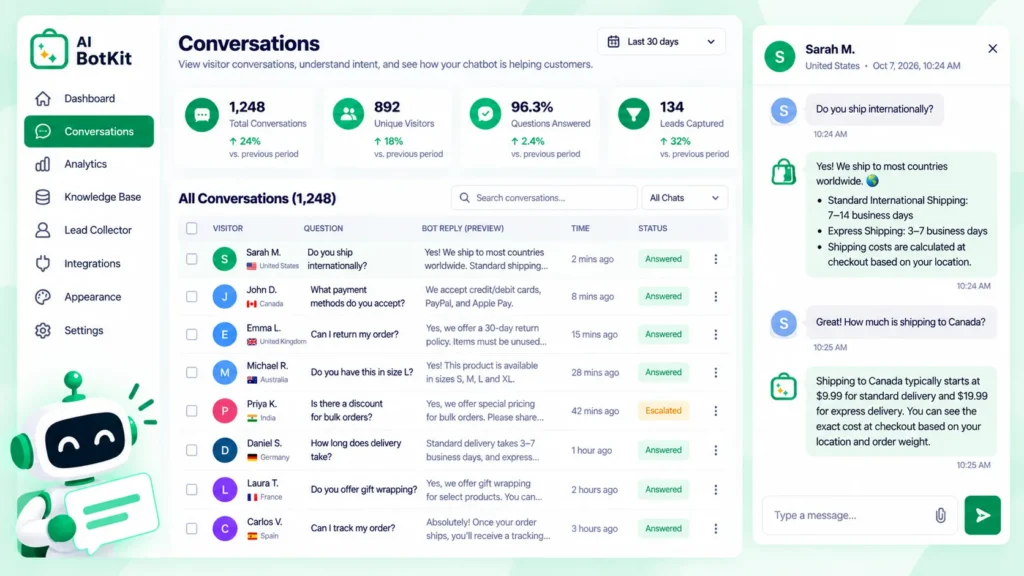
In AI BotKit, we let you add or update documents, URLs and FAQs any time from the Knowledge section. For anything you added as a URL or document, retrain after a change and ask the same question again.
When should a person step in instead of the bot?
Some questions should go to you: refunds, damaged items, anything involving a payment problem. A bot that keeps guessing at those costs you more than a slow reply would. Decide in advance which questions are yours.
We built handover into the plugin. The bot can offer to pass a chat to your team by Email, WhatsApp, Telegram, Instagram or Messenger, and you can set it to trigger after consecutive unanswered questions.
On data, tell shoppers they’re chatting with a bot, and don’t train it on documents that contain customer details. Before you publish, read the provider’s privacy policy for where conversations are stored and who can see them. This guide isn’t legal advice.
What does it cost to start?
You can start on a free plan. Our docs list a free-plan limit of 50 messages a month, enough to test a few dozen questions on your own pages. The paid tiers are Basic, Essential and Business, and the pricing page has current prices. Test on the free plan before you pay for anything.
Your WooCommerce chatbot pre-launch checklist
Run through this before you publish:
- Read your shipping, returns and FAQ pages as a shopper would, and fill the gaps
- Add those pages, any PDFs, and your top product pages as sources
- Write a greeting and a fallback message that points shoppers to you
- Test 10 to 15 real questions in preview mode and fix the pages behind wrong answers
- Decide which questions go to a person, and set up handover
- Read the privacy policy and tell shoppers they’re chatting with a bot
- Open your store in a private window and confirm the widget loads
- Set a reminder to retest after product changes
FAQ
Can a chatbot look up orders or build carts in WooCommerce?
Only with a live connection to your store’s data and rules for who can see which order, which usually means a custom build. A bot trained only on your pages answers policy and product questions, not individual orders. A WooCommerce support reply to one store owner said no single official extension does AI chat plus cart-building on WhatsApp.
Is there a free WooCommerce chatbot?
Yes, several plugins have free tiers, with limits. Our free plan has a 50-message monthly limit per our docs, so check the limit before you rely on any of them. Our guide to free chatbots for WordPress compares what each free plan gives you.
Do I need to code to set one up?
No. The plugin installs from your WordPress dashboard, and the dashboard route needs only an embed snippet pasted into a Custom HTML block. Tone, greeting and appearance are set on screens, not in code.
What happens when the chatbot gets an answer wrong?
Treat it as a content problem first. Find the page the answer should have come from, fix or add it, retrain, and ask again. If a type of question keeps missing, send it to a person with handover.
Will it keep up when I change my products?
Not automatically for everything. How well a tool tracks changes depends on how it reads your content, so after a rename, price change or removal, update the source, retrain and test. The section above lists the questions to ask any tool.
If you’re answering the same shipping and returns questions by hand every week, try the bot on your own pages first and start with the free plan. After a decade of building WordPress products at WisdmLabs, we built AI BotKit for stores in exactly that spot, and you can start free and train it on your own pages today.